
Webflow to Shopify Migration: Complete Step-by-Step Guide
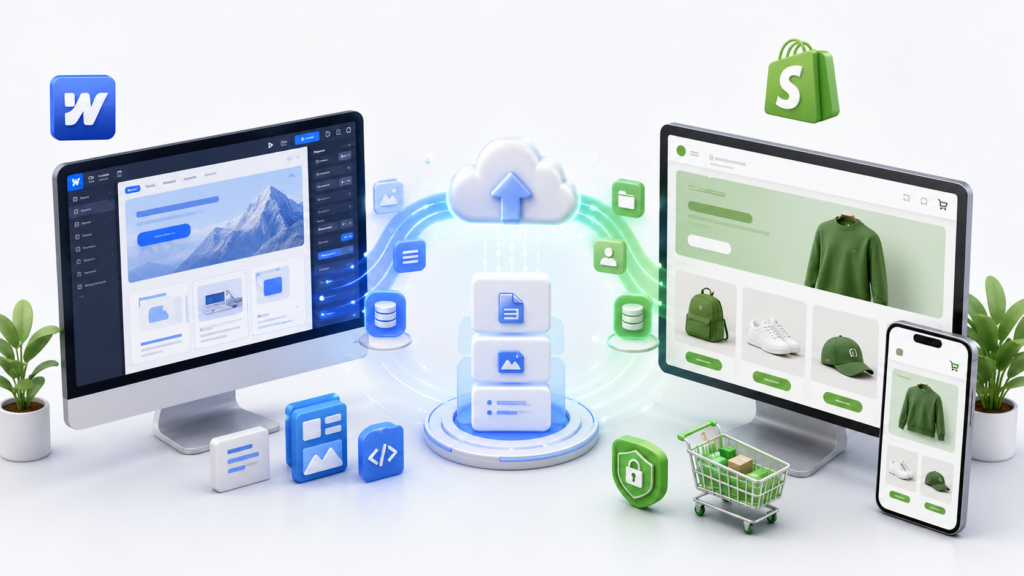
So, you’ve successfully launched your Webflow website. The result was great-looking and fast-loading, and you enjoyed total creative freedom while designing every detail. But at some point, you understood that selling products online via Webflow is just plain frustrating. Restricted payment methods and no real inventory management make scaling your e-commerce store literally a pain in the neck. This is exactly why so many business owners choose to migrate from Webflow to Shopify at this point in time. And if you’re thinking about migrating as well, then you’re in the right place. Our company, Code Inc Solutions, helped dozens of other businesses perform this migration without damaging any SEO ranking or losing design or client data in the process. We’ll show you how to do it all in our simple step-by-step guide. Why Are People Leaving Webflow for Shopify? Webflow is a brilliant tool. Let’s be clear about that. But it was built primarily as a design and CMS platform, not a dedicated e-commerce engine. When your product catalog grows beyond 20-30 items, or when you need features like abandoned cart recovery, multi-currency checkout, or real-time shipping rates, Webflow starts showing its limits. Shopify, on the other hand, was built from day one with selling in mind. It handles thousands of products effortlessly, integrates with hundreds of apps, and gives you a checkout process that customers actually trust. Here’s what most of our clients at Code Inc Solutions tell us pushed them over the edge: Their Webflow store couldn’t handle discount codes properly They needed better abandoned cart email automation Inventory tracking was becoming a nightmare They wanted to sell across multiple channels (Instagram, Amazon, TikTok Shop) Their payment gateway options were too limited If any of those sound familiar, keep reading. What Does a Webflow Website to Shopify Migration Actually Involve? This is where a lot of business owners get nervous. Migration sounds like a technical monster. But when it’s done right — with a proper plan — it’s actually very manageable. Here’s what the process typically covers: 1. Audit Your Webflow Site Before You Begin Migration The first thing you should do is get familiar with your current site. What this means is that you have to catalog all products, pages, blogs, images, redirects, and forms. Failure to do this results in loss of data and even rankings by search engines. At Code Inc Solutions, this is the stage we dedicate significant time to, which saves us many headaches in the future. 2. Export Your Product Information Webflow allows the export of CMS collections as CSV files. This includes products, categories, descriptions, prices, and SKUs. On the Shopify platform, you can also import CSV files, so this stage is not complicated per se. The tricky part comes with aligning the columns to Shopify’s format. 3. Import Customer Data This is one of the most important steps and also the most risky. It involves migrating the names, emails, customer information, and order history in compliance with GDPR or any other privacy regulation. Shopify offers a customer import functionality, but not everything can be imported. Passwords, for example, are not allowed. 4. Rebuild or Transfer Your Design Here’s the truth: you can’t just copy-paste a Webflow website to shopify migration. They use completely different templating systems (Webflow uses its own visual builder; Shopify uses Liquid). There are two paths here: Use a Shopify theme that closely matches your brand aesthetic and customize it Build a custom Shopify theme that replicates your Webflow design more precisely At Code Inc Solutions, we usually recommend a hybrid — start with a solid Shopify theme foundation and layer in your brand’s custom styles on top. It’s faster and more cost-effective than building from scratch. 5. Set Up Redirects (Don’t Skip This) If your Webflow URLs were /products/blue-sneakers and your Shopify URLs are /products/blue-sneakers, great — you might be fine. But often, the URL structure changes, and if you don’t set up 301 redirects, you’ll wake up one morning to find your Google rankings have dropped off a cliff. This is one of the most critical parts of any webflow website to shopify migration, and it’s one that businesses trying to DIY this often miss. 6. Re-create Your Apps and Integrations All the applications that were connected to Webflow—such as email marketers, reviews, live chat, and analytics—are going to have to be re-created on Shopify. Thankfully, almost everything is available via the Shopify App Store; however, it does take time to set it all up. 7. Test Everything Before Launching Do not launch without testing your entire store, including all your product pages, checkout process, discount codes, email campaigns, and any forms you may have. You need to do mobile testing, browser testing, and even buy your own product. Will My SEO Take a Hit During the Migration? This is the question we get most often. And the honest answer is: it depends on how carefully the migration is handled. If you set up proper 301 redirects, keep your meta titles and descriptions intact, maintain your URL structure where possible, and don’t take the site offline for days at a time — your SEO impact will be minimal. Some clients actually see an improvement in SEO after migration because Shopify’s structured data and performance optimization are very solid. The risk comes when redirects are missed, when page titles change without thought, or when the site is in maintenance mode for too long. That’s when Google notices, and not in a good way. DIY vs. Hiring a Professional for webflow website to shopify migration Let’s be straight with you. If you have 10 products, a simple design, and a decent technical background, you can probably do this yourself. Shopify’s documentation is pretty good, and there are tools that help. But if you have: A large product catalog An existing customer base you can’t afford to frustrate SEO rankings you’ve worked hard to build Custom design elements that matter to your brand then hiring professionals like